This is a new topic in 12.03.
This is a new topic in 12.04.
Content highlighted in yellow is new in 12.03.
Content highlighted in blue is new in 12.04.
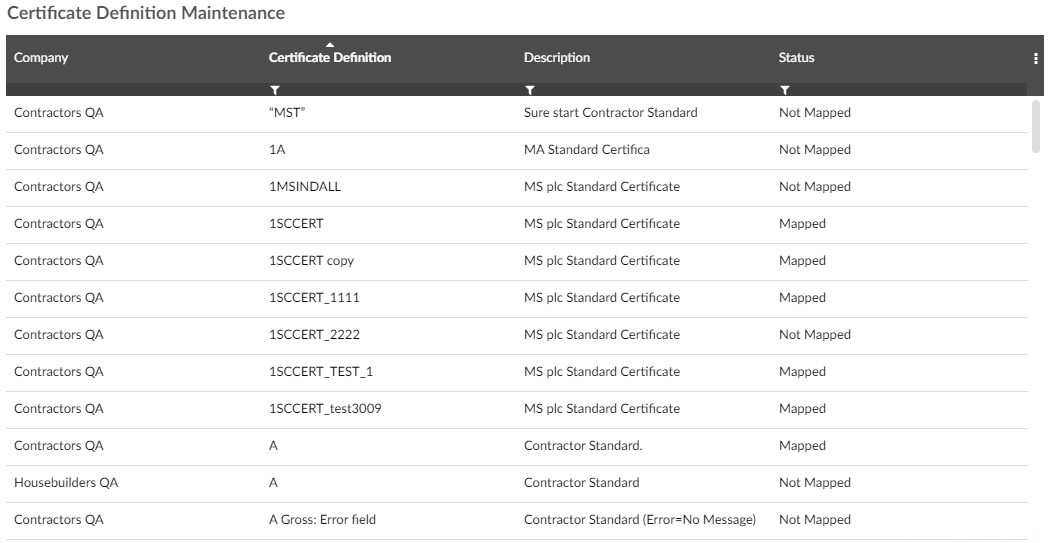
When a Payment Notice or Pay less Notice is submitted in SC Controller, the data is sent to COINS ERP+ as an unposted SCCCERT batch. In Certificate Definition Maintenance, you can map each of the field labels from the payment or pay less notice in SC Controller to an Item ID in COINS ERP+, for each Certificate Definition. For unused certificate definitions, you can also customise the field labels.
To set up a certificate definition:
-
Right-click the certificate definition, or left-click the certificate definition and click the menu icon
 , then click Modify. This opens the Certificate Definition Setup window.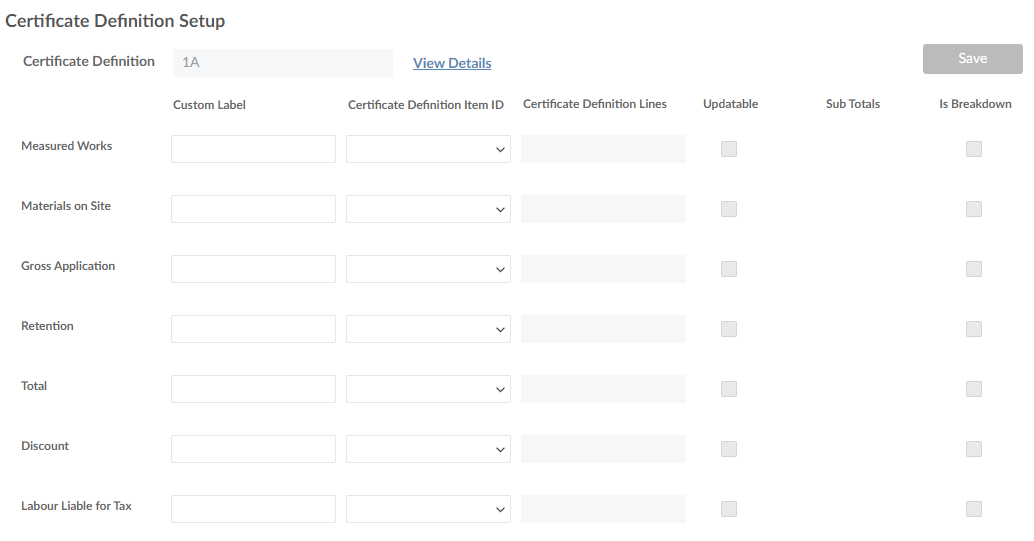
-
Match each of the field headings on the left to the relevant Certificate Definition Item IDs from the drop-down menus . You cannot select the same Item ID more than once and no field can be left blank. If either of these criteria are breached, a red warning sign
 will appear next to the relevant field and you will not be able to save until it is rectified.
If you are unsure what some of the Item IDs stand for, click View Details for a description of each Item ID.
-
If the certificate definition has not been used yet (i.e. it has no SC orders associated with it other than ones with status 'New') you can customise the field labels by entering a new name into the Custom Label field. If you attempt to change the custom labels of a certificate definition that already has 'Active', 'Closed', 'Cancelled' or 'Released to ERP' SC orders, it will return a critical error.
-
The four additional columns to the right of the screen are read-only and contain information about how the certificate definition was set up in ERP+.
-
Once you have completed every field, click
 to save your changes.
If successful, the status of the certificate definition on the Certificate Definition Maintenance page will have changed from Not Mapped to Mapped.
